
 EN
EN  NO
NO  GR
GR  PL
PL  AU
AU  HU
HU  DE
DE  SI
SI  CA
CA  CZ
CZ  IT
IT  NZ
NZ  AR
AR  CH
CH  AT
AT  CL
CL  DK
DK  ES
ES  PT
PT 
 Games
Games 
 Live Dealers


 Hall of Fame
 VIP
VIP 

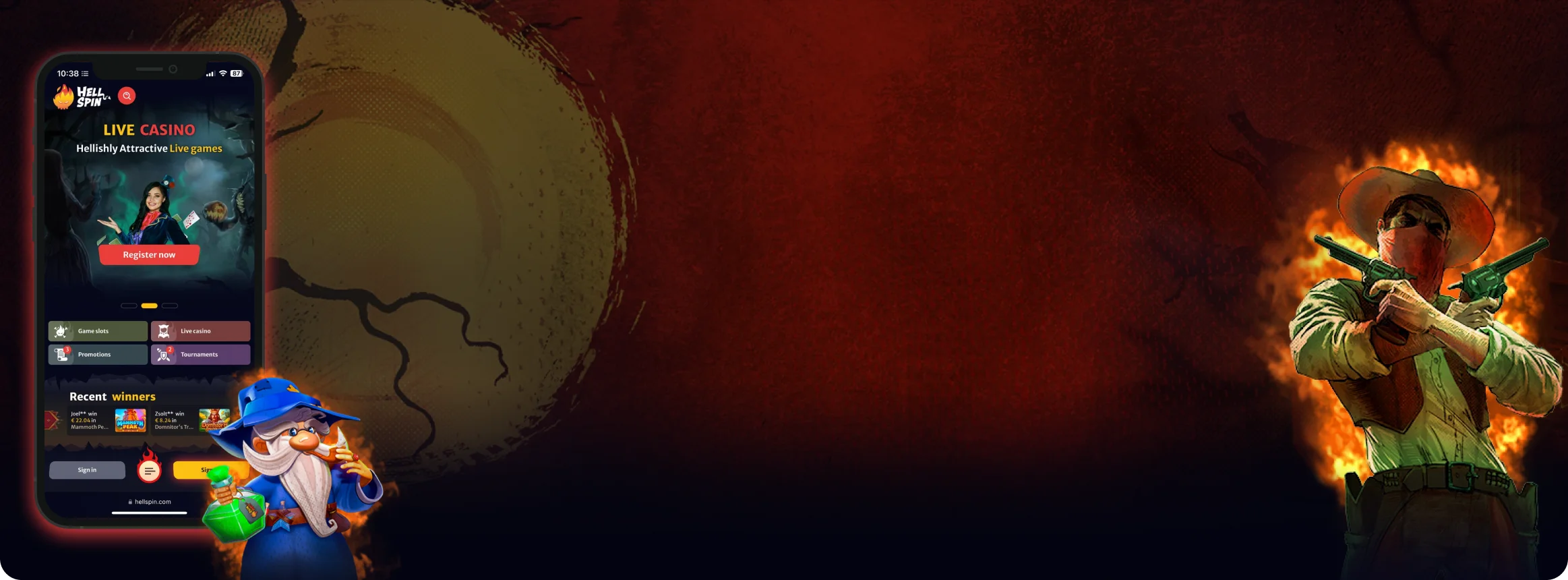
HellSpin Mobile App – Full Review for iOS and Android
We explored the HellSpin mobile app on different devices. From installation to payments, here’s what really stood out in everyday use.
Join nowHellSpin Mobile App
Using the app for HellSpin on a phone has a different feel from a desktop. On a mobile device, we consider comfort and speed more than anything else. We all want quick loading games, stable streams, and navigation that doesn’t feel cumbersome. To see if the app could handle that, we loaded it up on iPhone and Android and began to explore.
We went through the same steps that anyone would: searching the store, logging in, checking the cashier, and jumping between slots and live tables. Along the way, we noted what felt smooth and where the app made us pause. These aren’t just specs on paper, but the small details that shape everyday use.
If you’re weighing whether to download or just stick to the browser, this walkthrough should help you picture both options.
Main Features
Before going into the full story, here’s what the app showed us in the first few minutes:
- The lobby opened instantly, with no loading screens or splash delays.
- Game tiles were big enough to tap comfortably, even on smaller phones.
- Search handled both titles and provider names without mistakes.
- Slots, live tables, promos, and the cashier were already in place — nothing missing.
- Text stayed sharp on older devices, and colours were balanced, not overly bright.
- Menus flowed naturally, so moving between sections didn’t feel clunky.
How to Download and Install the HellSpin App
Installing HellSpin on a phone or tablet is simple once you know the right steps. But still, there are a few small checks worth doing first.
Make sure that your device has the latest software update, clear a little storage space, and connect to stable Wi-Fi before starting the download. That way, you avoid half-finished installs or crashes mid-way.
 iPhone or iPad (iOS)
We began with iOS. The process follows the same flow as any regular app, but it helps to pay attention to details, so you don’t grab the wrong version.
- Open the App Store directly from the device where you want to play. Using the same phone or tablet saves time later, as switching devices can trigger extra security checks.
- Search for “HellSpin Casino”. When several apps look similar, always double-check the publisher name and screenshots. They should match the look and feel of the official HellSpin website.
- Tap “Get”, confirm with Face ID or your Apple ID password, and wait for the download to finish. The app size is small, so on decent Wi-Fi, it usually installs in under a minute.
- Once installed, open the app and log in with the same account that you use on desktop. If you are new, registration can be completed inside the app without switching back to the website.
We will advise you to enable Face ID login during setup. It saves you from typing passwords every time.
 Android Phones or Tablets
With Android, most players will find the app directly in Google Play, but region settings sometimes hide gambling apps. In that case, HellSpin also provides an APK file from its website. We tested both routes.
Google Play
- Open Google Play on your phone and make sure you’re signed in.
- Search for “HellSpin Casino” and pick the official listing.
- Tap “Instal”l and let the download finish.
- Open the app, log in, or create a new account.
- Go to Settings and enable fingerprint login for faster access.
APK Download (if Play Store doesn’t show the app)
- Visit the official HellSpin site in your browser, scroll to the mobile section, and tap “Download for Android (APK)”.
- Android will ask you to allow installs from that browser. Confirm it in your settings.
- Once the file is in your Downloads, tap it and choose Install.
- Launch the app, sign in, and you’re ready to play.
- For safety, go back to your settings and switch off “unknown sources” after the install.
Both versions work the same once installed, and the updates roll out regularly, too. The APK may need you to re-download updates when prompted, while the Play Store handles them automatically.

App Features and Benefits
As we mentioned above, the HellSpin app feels like a full casino, not a reduced version.
- All the games, from slots to live dealer tables, load directly inside the app. The cashier, promotions, and account settings are also available, so you don’t have to switch between desktop and mobile.
- Portability is the main draw. Having the casino on your phone means that you can play during short breaks, while traveling, or even at home without opening a laptop. All of the design is jotted down for this concept of what can be done on smaller screens: larger tiles for games, minimalistic menus, and a simple means of vertical navigation with your thumb.
- Security is built into the login process. On iOS, Face ID gives instant access. On Android, fingerprint unlock does the same. Both replace long passwords while still protecting the account. You can also review active sessions in the security tab and log out devices you no longer use.
- The app runs smoothly, even on mid-range phones. Graphics adjust to the connection you have — high quality on strong Wi-Fi and lighter quality when data drops, so the games don’t freeze.
- Notifications are optional but useful. They cover tournaments, promotions, and payment approvals, and you can mute them in one tap if you prefer.
Together, these features make the HellSpin app a solid extension of the desktop site. You get the same tools, with the added benefit of quick access wherever you are.



App Requirements and Compatible Devices
HellSpin is not demanding, but there are still a few basics that your phone or tablet should meet to run the app smoothly. The installation itself takes little space, but games, especially if you prefer live dealer streams, need both memory and a steady connection. An updated operating system is just as important as storage.
iOS Devices
Android Devices
Connection
Because live casino games stream like video, your internet connection makes the biggest difference.
On strong Wi-Fi or 4G/5G, streams run in HD without lag. If the signal dips, the app lowers the quality for a moment instead of freezing, then improves once the connection stabilises.
In short, most mid-range phones from the last 5 years will handle HellSpin well. The main checks are updated software, a few hundred MBs free, and a stable network for live play.
Playing HellSpin Through a Browser
Some players prefer not to install apps at all, and HellSpin works well for them, too.
- The site runs directly in mobile browsers, and we tested it across Safari on iPhone and Chrome on Android. In each case, the site scaled neatly to the screen size. Slots filled the space without stretched graphics, buttons were large enough to tap with one thumb, and the cashier opened in the same clean layout as on desktop.
- This route is handy for several situations. If your device is low on storage, the browser keeps things light. If you’re borrowing a phone or using a work device, you won’t leave any app traces behind. Casual players may also prefer it. You can log in, play a few rounds, and log out without installing updates or toggling notifications.
- Performance stayed steady in our browser tests. On Safari, a batch of new slots loaded within seconds and ran smoothly with no sound delay. On Chrome, live roulette streamed at full resolution, and even when switching tabs, the session resumed in place.
- Payments worked just as they did in the app: deposits through cards and e-wallets appeared instantly, and withdrawals followed the same timeline that we had seen in the native version.
- The only small drawback is that browser sessions sometimes expire faster, which means re-entering your password after a break.
- If you like shortcuts, there’s a simple trick to make the browser feel almost like an app. On iOS, tap the “Share” button and choose “Add to Home Screen”. On Android, open Chrome’s menu and pick the same option. The icon appears on your screen, and the site opens in full-screen mode without the browser bar. For many players, that setup gives the speed of an app without needing an actual install.

FAQs
No. The same login works on both desktop and mobile, so you don’t need to create anything new. Balances, bonuses, and game history carry over automatically. You can start a session on one device and continue on another without losing progress.
The size is fairly small, usually between 60 and 80 MB depending on the system. That’s light compared to many modern apps, so it won’t crowd your storage. Still, leaving a few hundred MBS free is recommended, since games need extra cache space for smooth loading.
Your account and data stay online. Removing the app only clears it from the phone, not the casino itself. Reinstalling is enough to get back in, and once you log in again, your balance and history reappear exactly as they were.
Yes. Cards and e-wallets can be stored inside the cashier, so deposits are quicker next time. On private devices, this is convenient, but if you’re sharing the phone, it’s better to avoid saving details for safety.
Most slots rotate automatically, giving a wider screen view. Menus and the cashier; however, stay in portrait. This keeps navigation simple and prevents confusion when switching between games and account settings.
Restarting the app or the device usually fixes it. If that doesn’t help, reinstalling clears most errors. It’s also important to keep the phone updated, since the app is designed for iOS 14+ and Android 9+. Outdated systems may not handle newer updates well.
Slots don’t use much power, but live games act like video streaming and require more. Long sessions on live tables will drain faster, especially on mobile data. Playing on Wi-Fi, lowering screen brightness, and closing other heavy apps will help.
On iOS and Google Play, updates are automatic and appear in the background. For the APK version, you’ll need to reinstall newer files from the official HellSpin site when they’re released. Updates are usually small and designed to improve stability or add compatibility with new games.

Responsible Play on Mobile
Since the app makes the games so easy to reach, it’s worth using the built-in tools to keep things balanced.
In the account menu, you’ll find options to set deposit and loss limits, create reminders for session length, or activate short breaks if you need them. Longer pauses, like self-exclusion, are also available.
It’s better to set these controls before starting a bonus or long session, because changing them halfway can sometimes interrupt play. The app also links to external support services if you want to talk to someone outside the casino.
